|
||||||
|
|





|
|
|
Device Configuration Guides
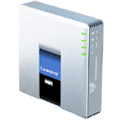
Linksys SPA3102
 The SPA3102 supports one RJ-11 POTS (Plain Old Telephone Service) FXS port to connect an existing analog phone or fax machine. The SPA3102 also supports one PSTN FXO port to connect to a Telco or PBX circuit. The SPA3102 includes 2 100BaseT RJ-45 Ethernet interfaces to connect to a home or office LAN, as well as an Ethernet connection to a broadband modem or router. The SPA3102 FXS and FXO lines can be independently configured via software controlled by the service provider or the end user. Installed by the end user and remotely provisioned, configured and maintained by the service provider, each SPA3102 converts voice traffic into data packets for transmission over an IP network. Compact in design, the SPA3102 can be used in consumer and business VoIP service offerings including a full-featured IP Centrex environment. The SPA3102 uses international standards for voice and data networking for reliable voice and fax operation.
This device can be used in 3 different ways; Standard VOIP Line, Local Access Number Line, or both. We have configuration guides for each of the 3 ways you may want to configure your device. Please choose from one of the following 3 configuration guides that we have available for this device below:
1)
Standard VOIP Line
|
|
||||||||||||||||||||||
|






|
Our Home Phone Service includes Internet phones with free Internet calling and unlimited US and Canada plans. We offer prepaid phone service and International DID numbers using our voice over IP system and an analog telephone adaptor (ATA). The solutions are designed for home phone service, business phone service, call shops, telemarketing firms and cyber cafes. InPhonex is proud to support Internet telephony equipment (IP Phones) including Sipura 2000, Sipura 3000, Cisco 186, Linksys PAP2 and other SIP phone adaptors. We also support Asterisk PBX, Trixbox and offer turn-key VoIP Reseller business opportunities to let entrepreneurs and businesses resell voice over Internet (VoIP) under their brand name. Copyright © InPhonex
|